Connecting App Store Connect
Link your Apple Developer account using an API key.
Connecting App Store Connect
FastStore connects to your App Store Connect account via an API key. Your private key is encrypted with AES-256 and never stored in plain text.
Step 1: Create an API Key in App Store Connect
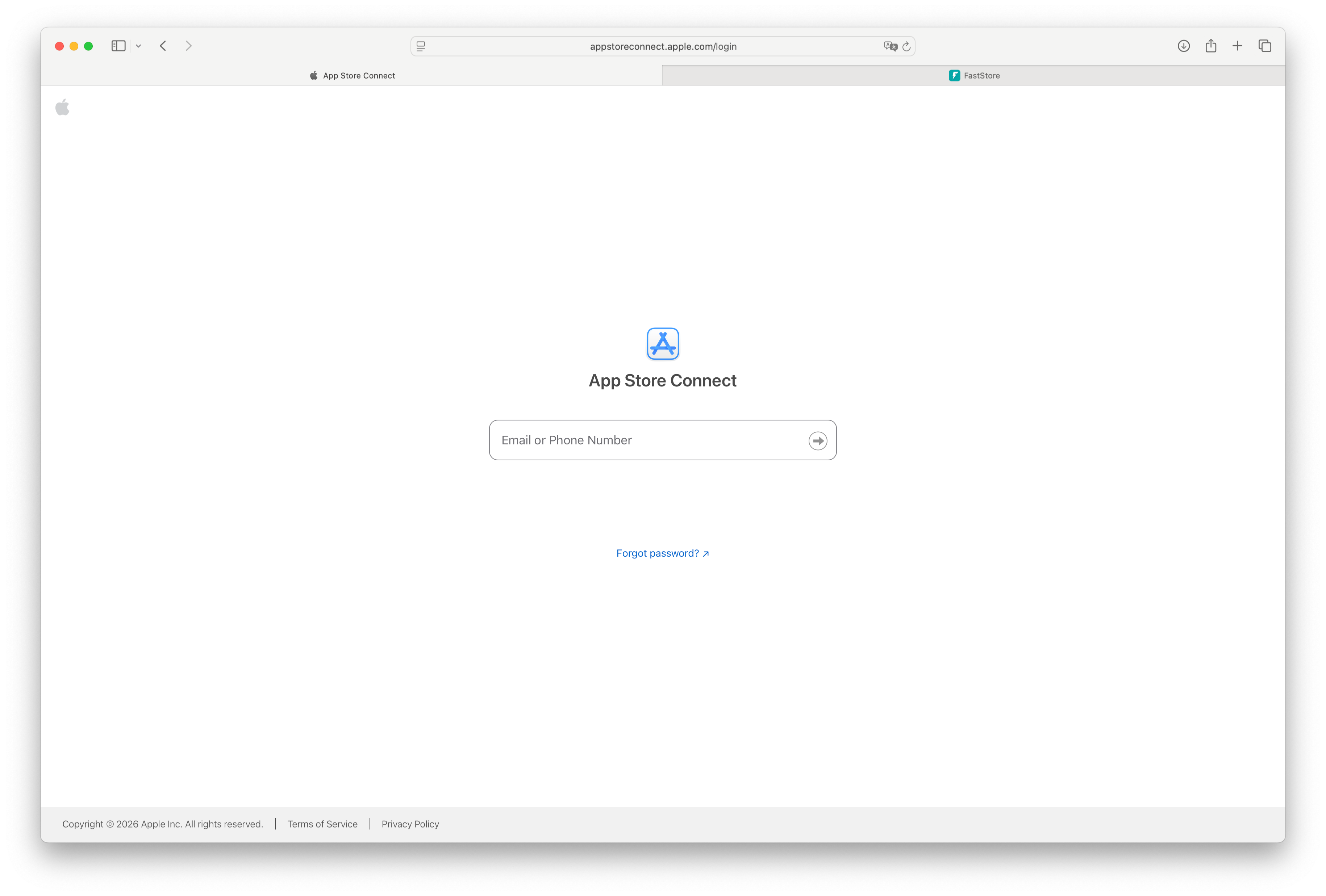
- Log in to App Store Connect.
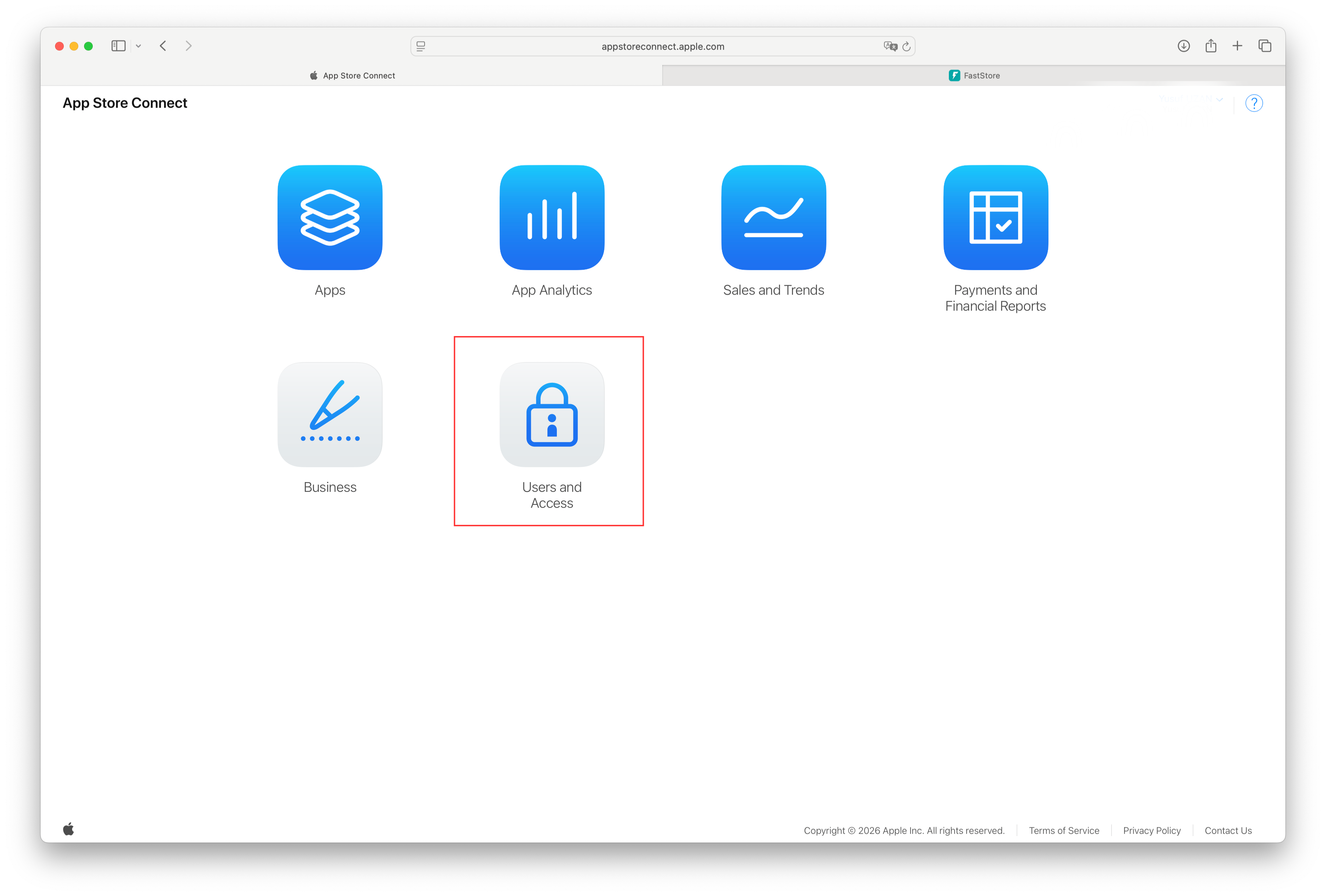
- Go to Users and Access.
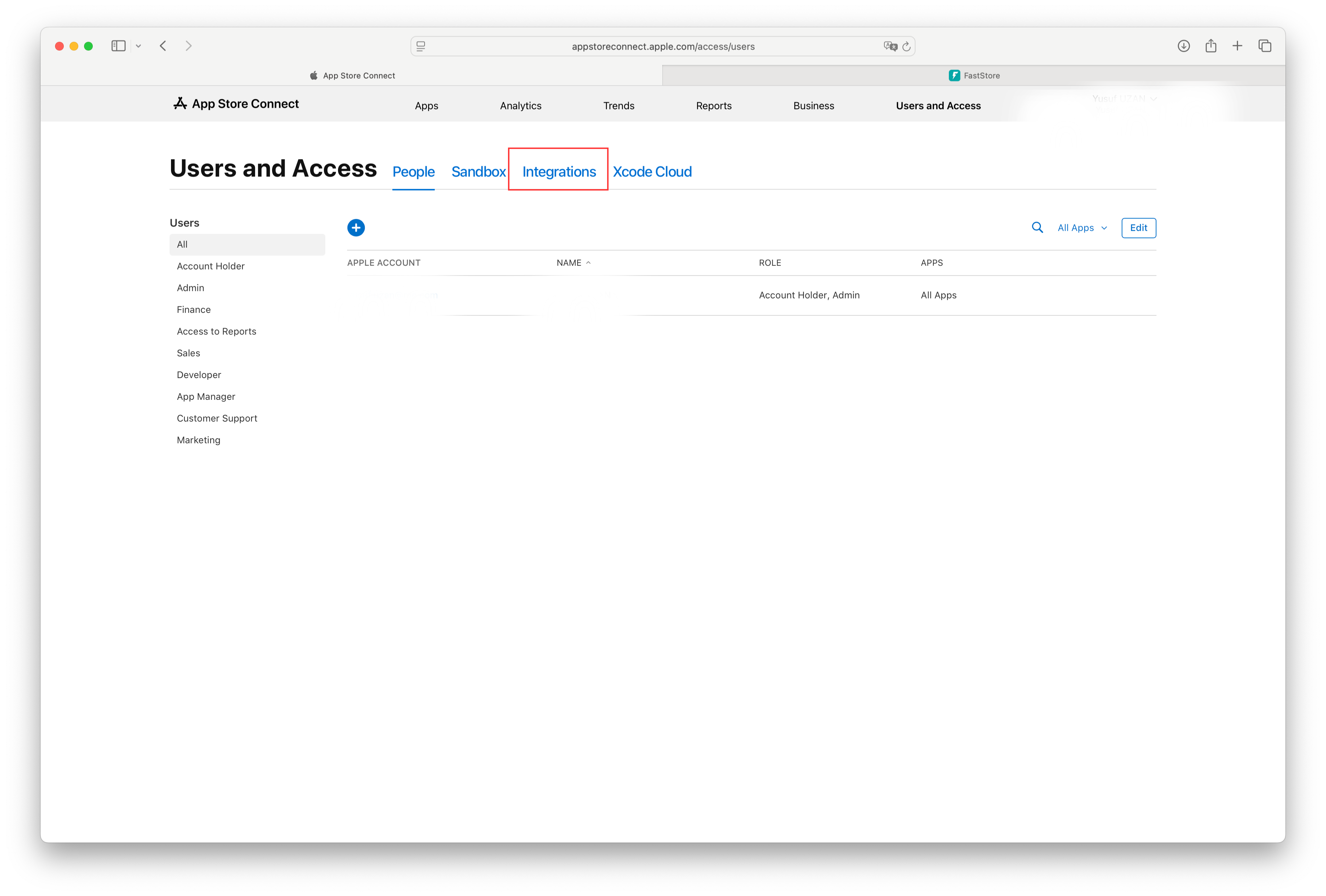
- Click the Integrations tab, then select App Store Connect API.
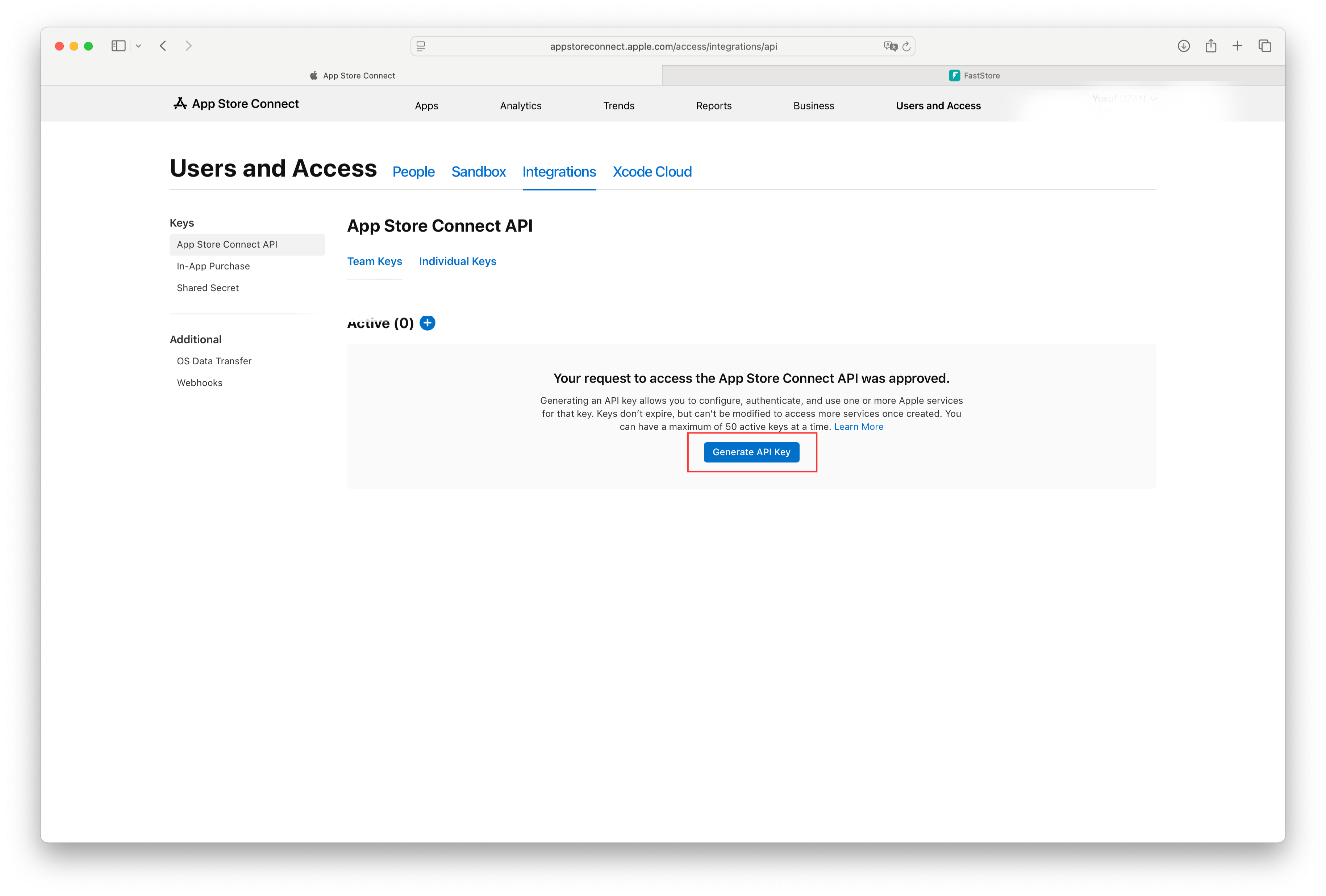
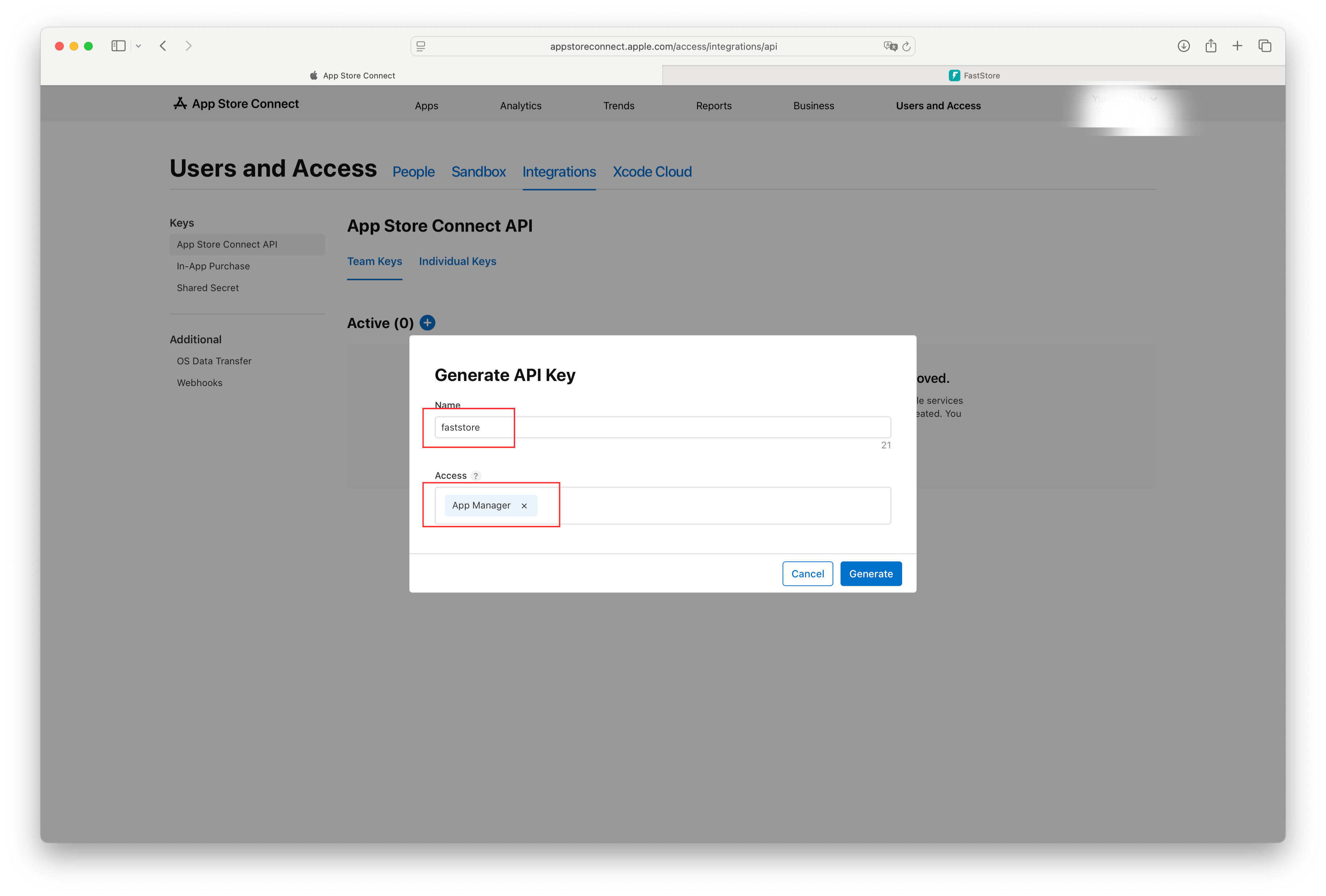
- Click Generate API Key.
- Give it a name (e.g., "faststore") and select the App Manager role. Click Generate.
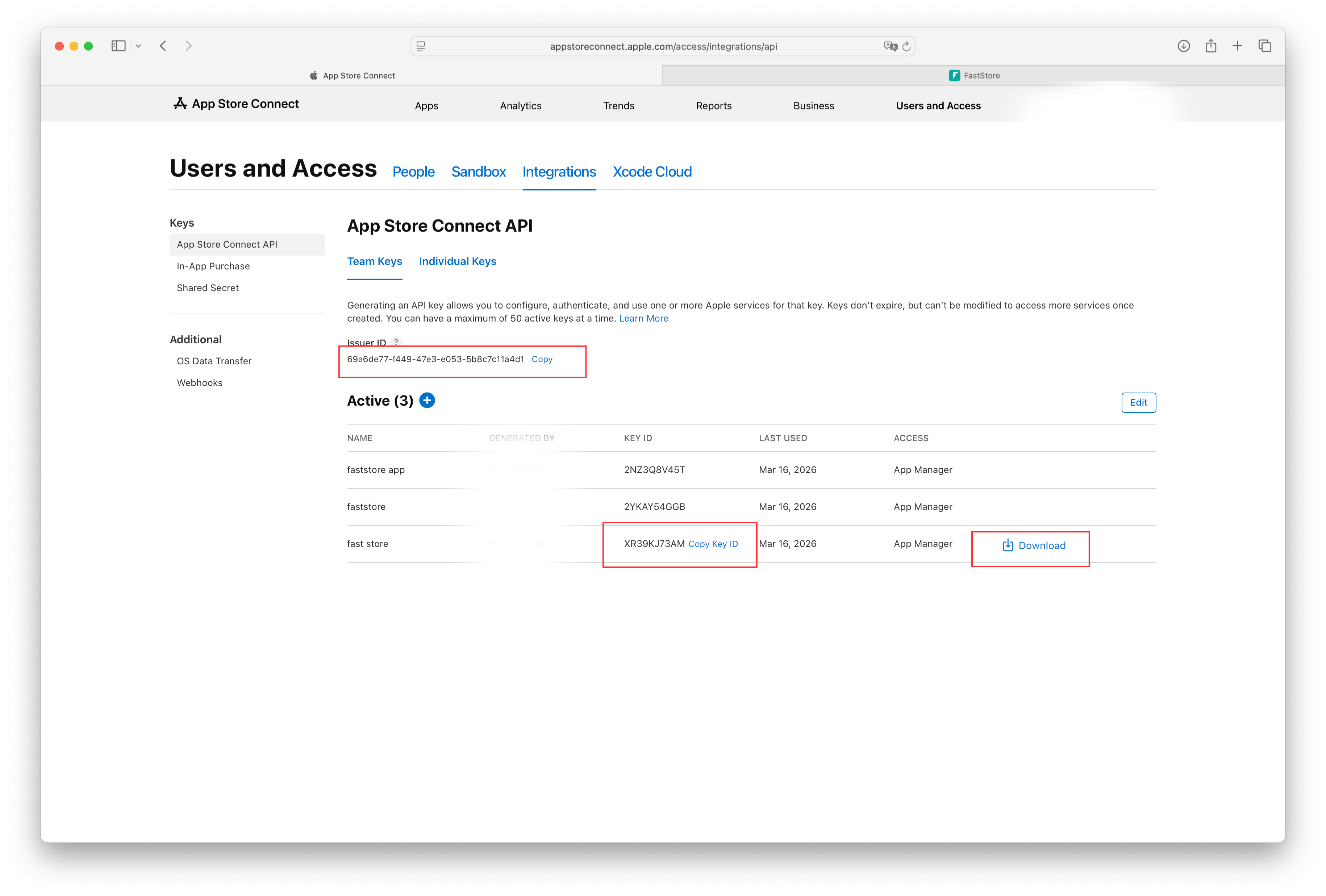
- Copy your Issuer ID and Key ID, then click Download to get the
.p8private key file. Keep this safe — Apple only lets you download it once.
Step 2: Add the Connection in FastStore
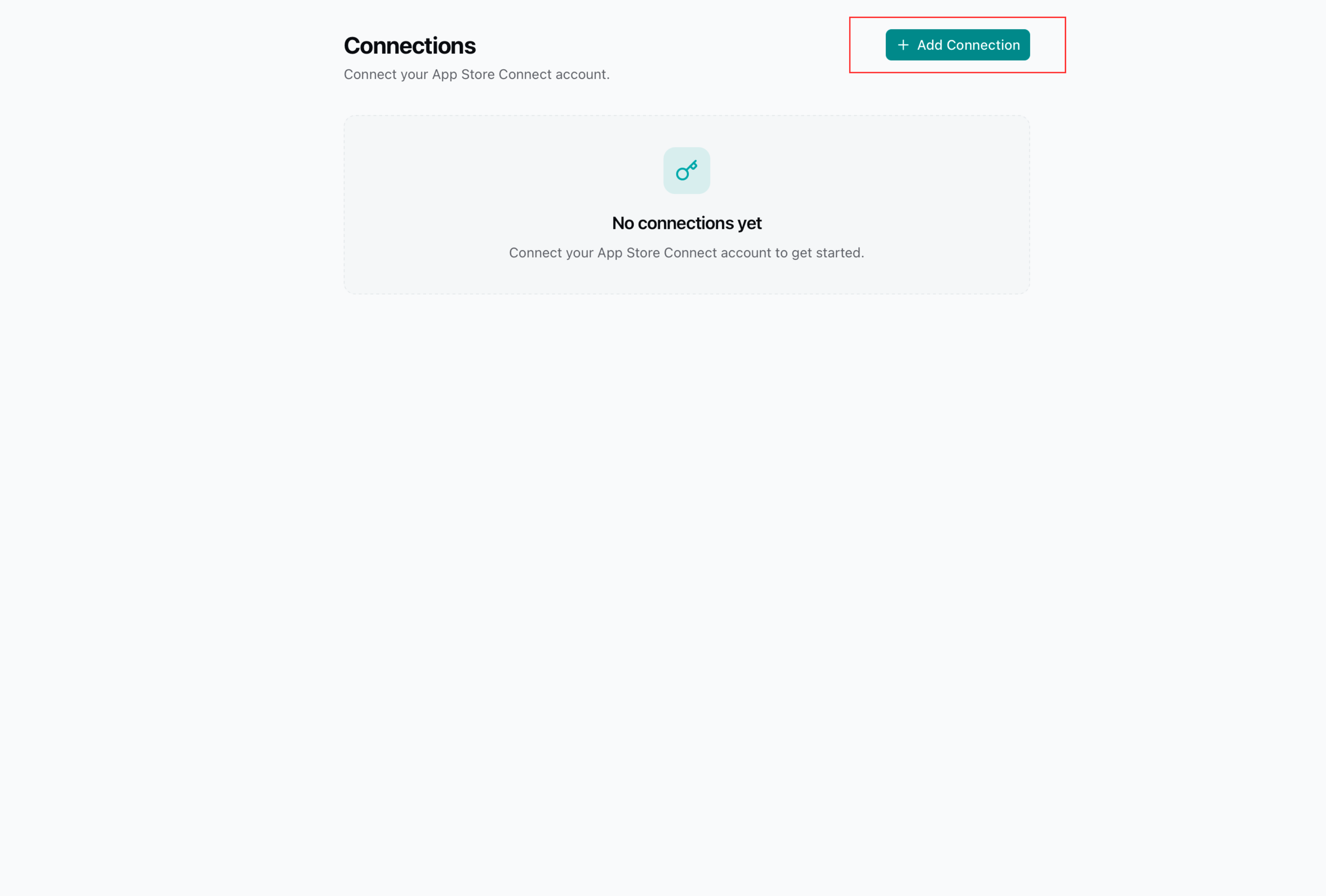
- Go to Connections in your FastStore dashboard and click Add Connection.
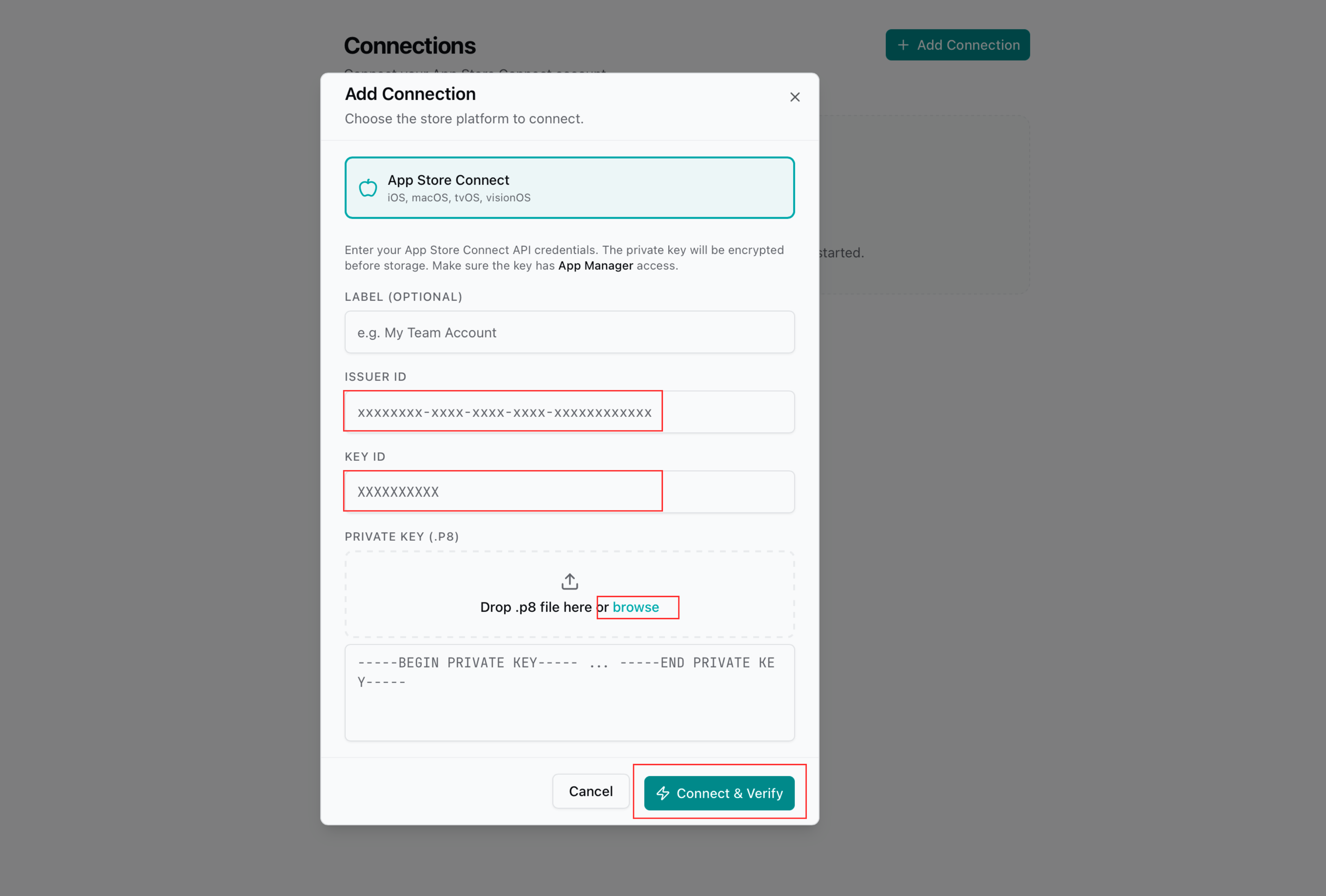
- Select App Store Connect, enter your Issuer ID, Key ID, and upload or paste the
.p8key content. Click Connect & Verify.
Step 3: Import Your Apps
- Go to Apps and click Add App.
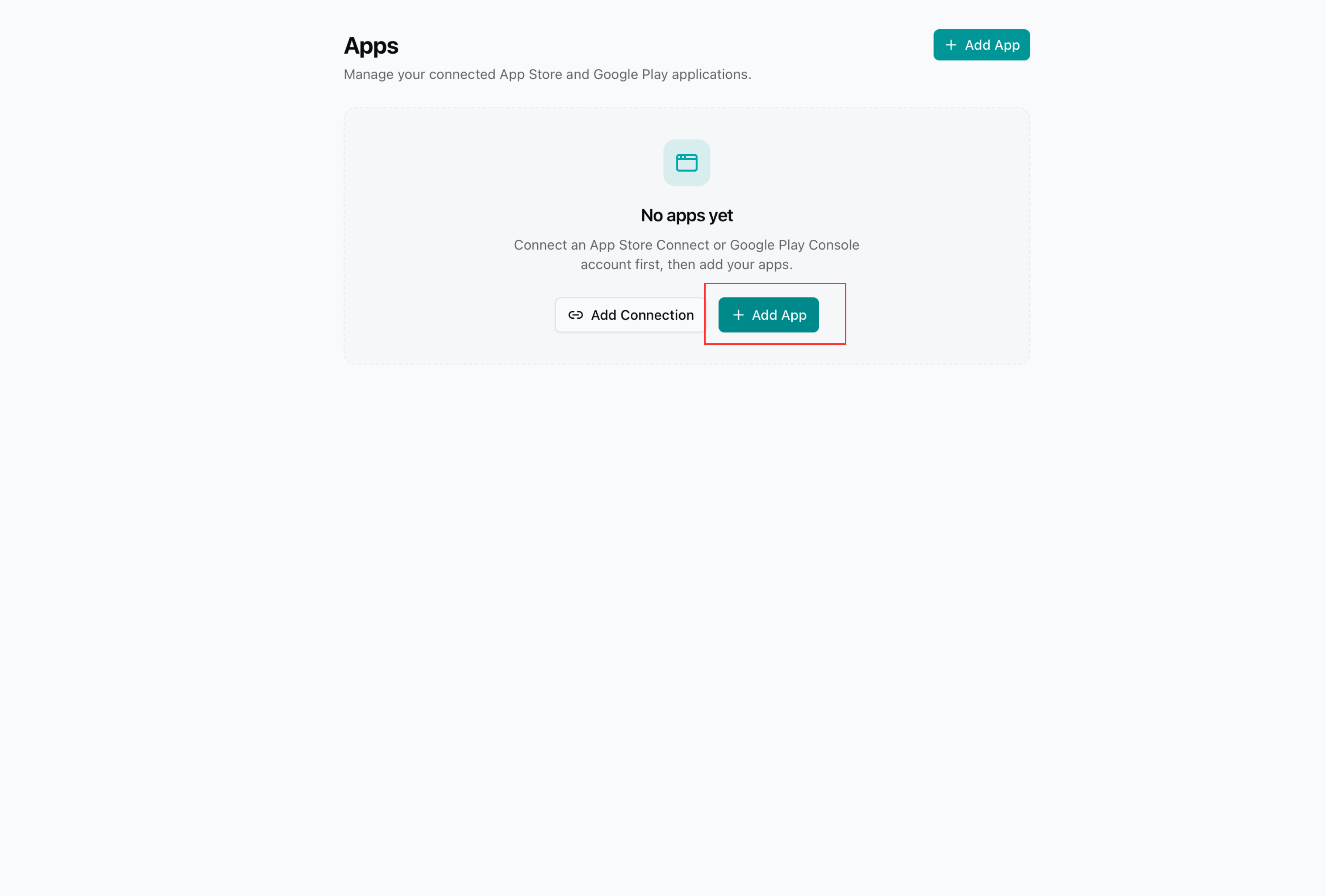
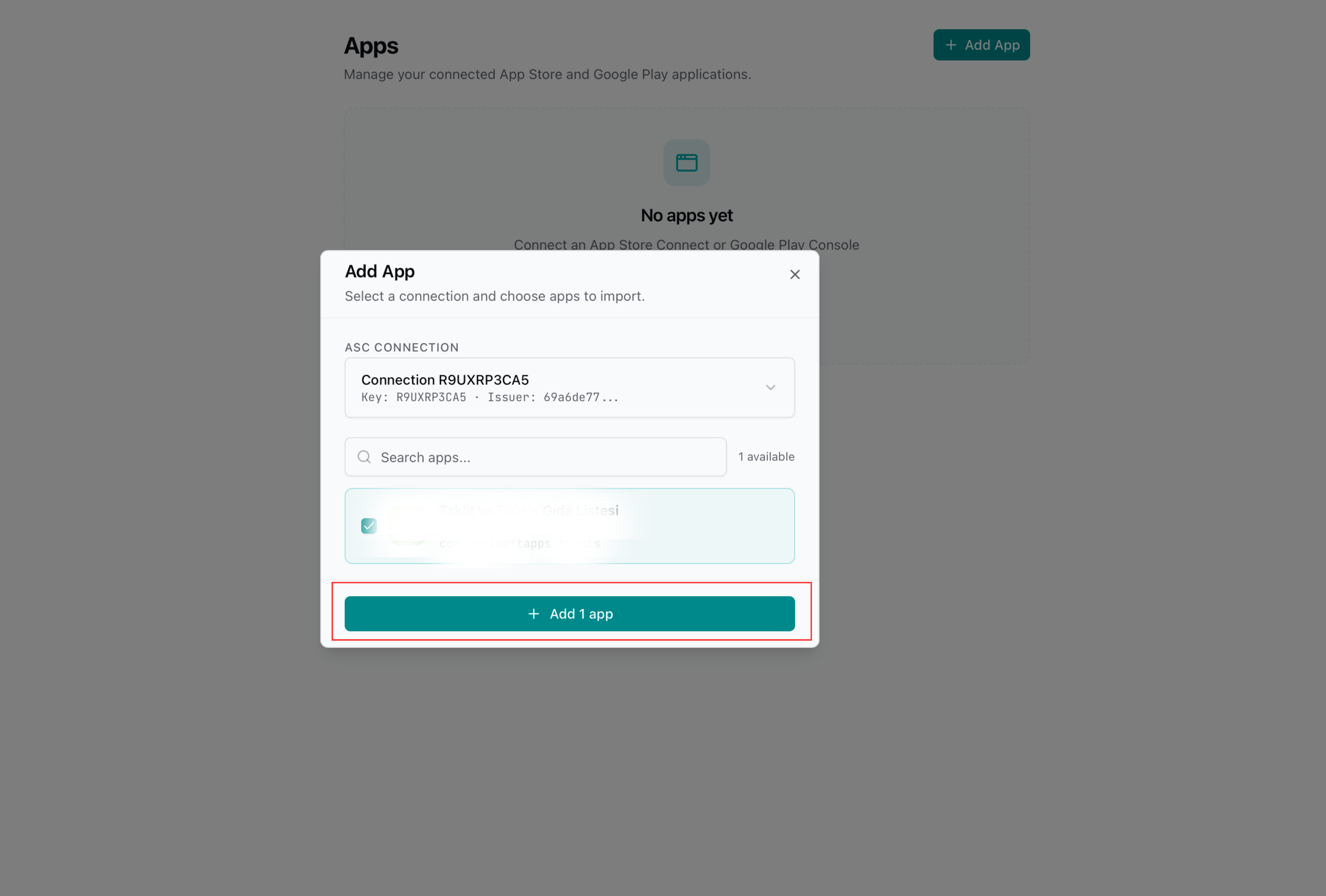
- Select your connection, choose the apps you want to import, and click Add.
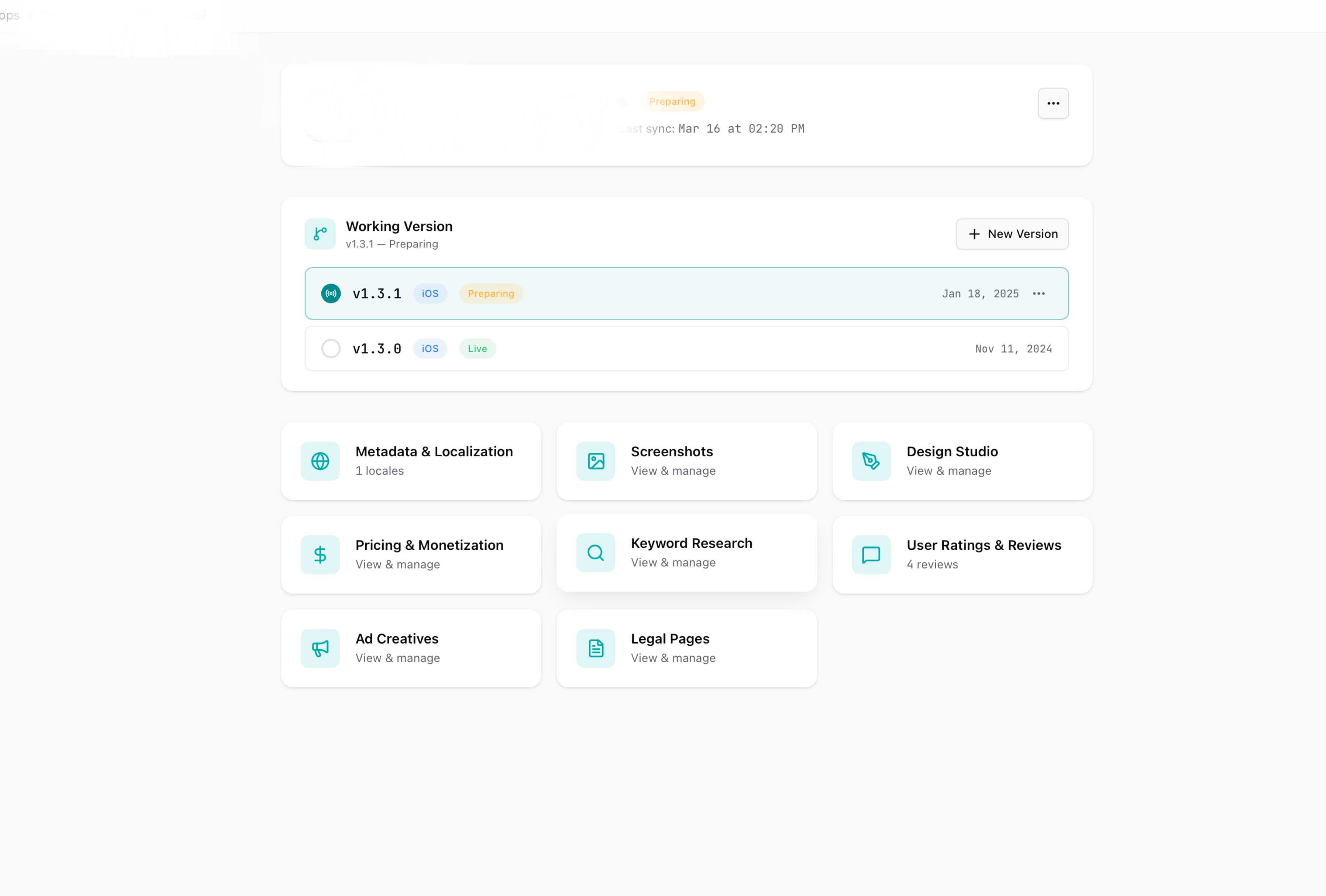
- Your app is now imported and ready to manage!
Tip: You can connect multiple App Store Connect accounts if you manage apps across different teams.